Resize and rotate
Scale uniformly or per axis and rotate to the orientation your printer needs, with exact typed values.
Open an STL in VIZON to resize, rotate, combine, cut and simplify it in your browser, then export it as STL again for 3D printing.
Drop a STL file here
The preview runs in your browser. Your file is not uploaded.
Scale uniformly or per axis and rotate to the orientation your printer needs, with exact typed values.
Subtract a cylinder or box from the STL with a boolean to make holes, slots and cut-outs.
Join the parts of a model into one mesh, or merge overlapping parts into a single solid with boolean union.
Separate loose parts or selected faces into their own objects, and print them separately.
Decimate heavy scans or exports to 50% or 20% to make them easier to handle.
Select vertices and faces to extrude, bevel or delete geometry by hand.
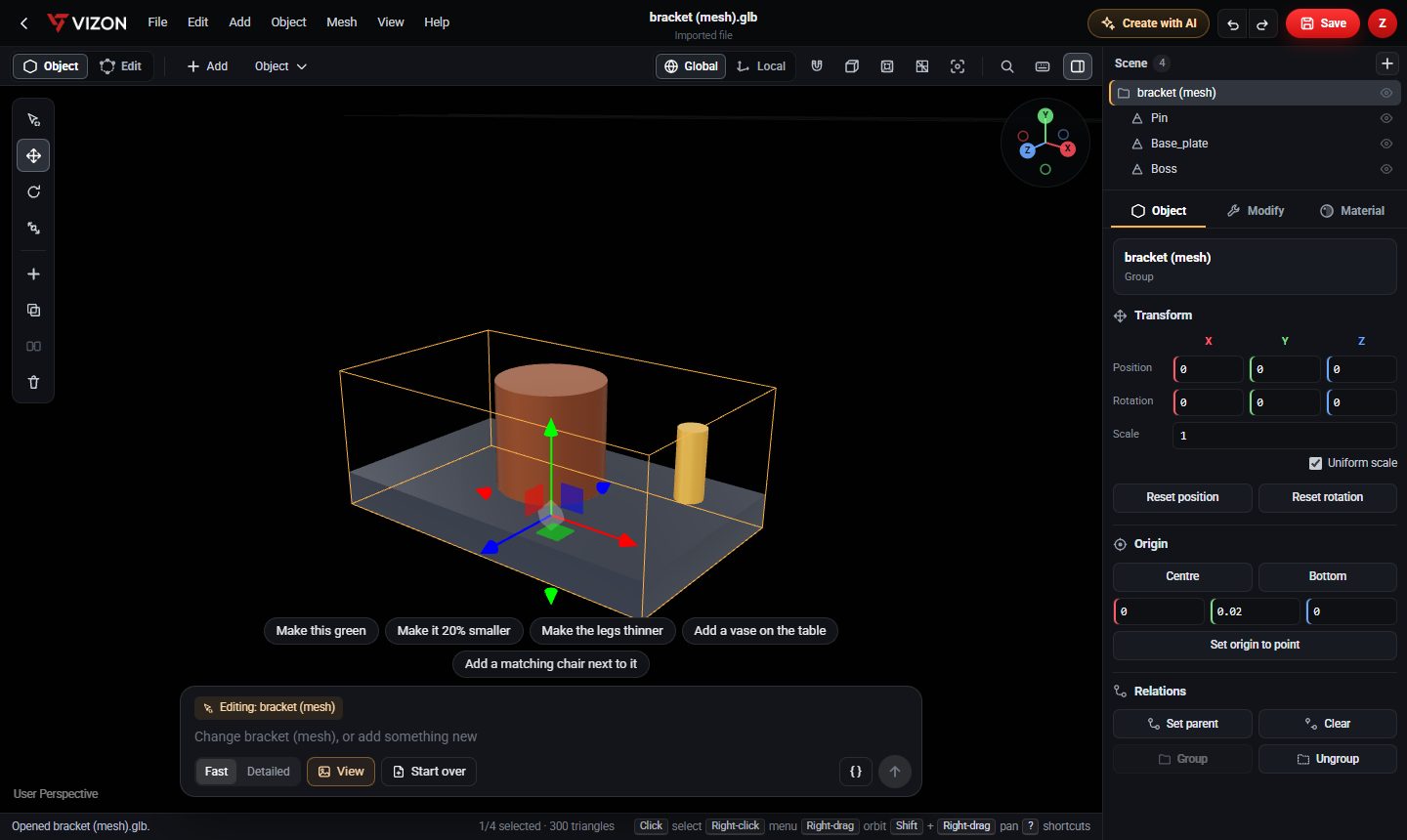
Want more detail? Read the guide: How to Edit an STL File Without Blender.
An STL is only triangles: it has no dimensions, features or history, so edits act on the surface. That is fine for scaling, cutting, combining and cleaning up a model.
If you need to change a hole diameter or a wall thickness precisely, rebuild the part in the VIZON CAD editor, where every size is a number you can change. CAD parts export to STL in millimetres.
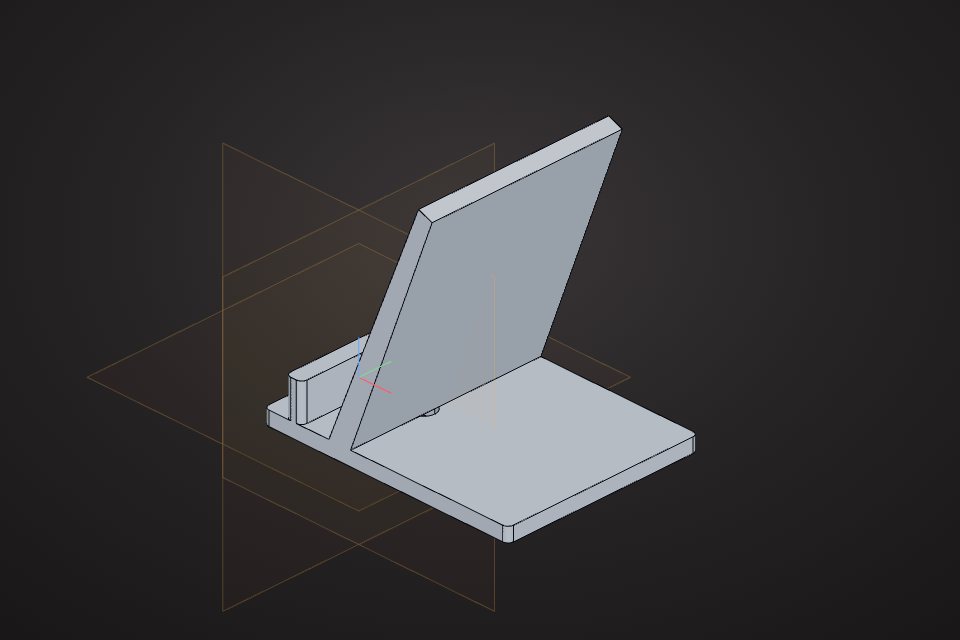
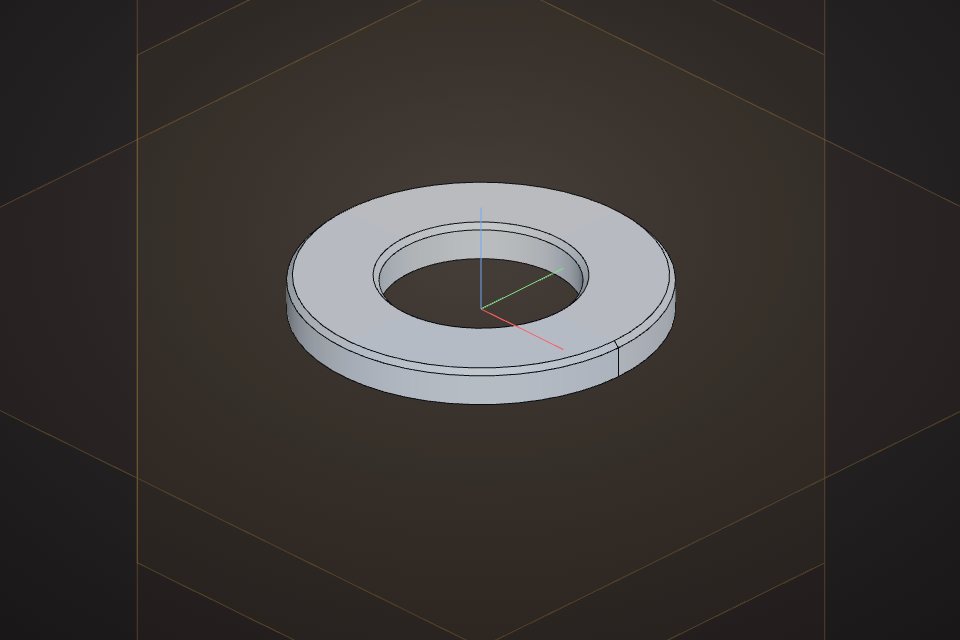
Real models built with these tools. Each one is free to download.
Yes. VIZON handles the common STL edits in the browser: resize, rotate, boolean cuts and merges, splitting and decimation.
Not yet. Opening a file replaces the current scene, so two separate STL files cannot be brought together today. Parts inside one model can be joined (Ctrl+J) or merged with boolean union.
STL files do not store units. Most slicers read them as millimetres, and VIZON CAD exports STL in millimetres.
Save the edited model, open it in Studio, and choose Export, STL.
VIZON runs in your browser. Create an account and open the tool in seconds.