
Parts stay separate
Each CAD part becomes its own named mesh in the GLB.
Turn a STEP file into a GLB that loads in web viewers, AR and game engines. Give each part a material in VIZON Studio first so the GLB looks right.
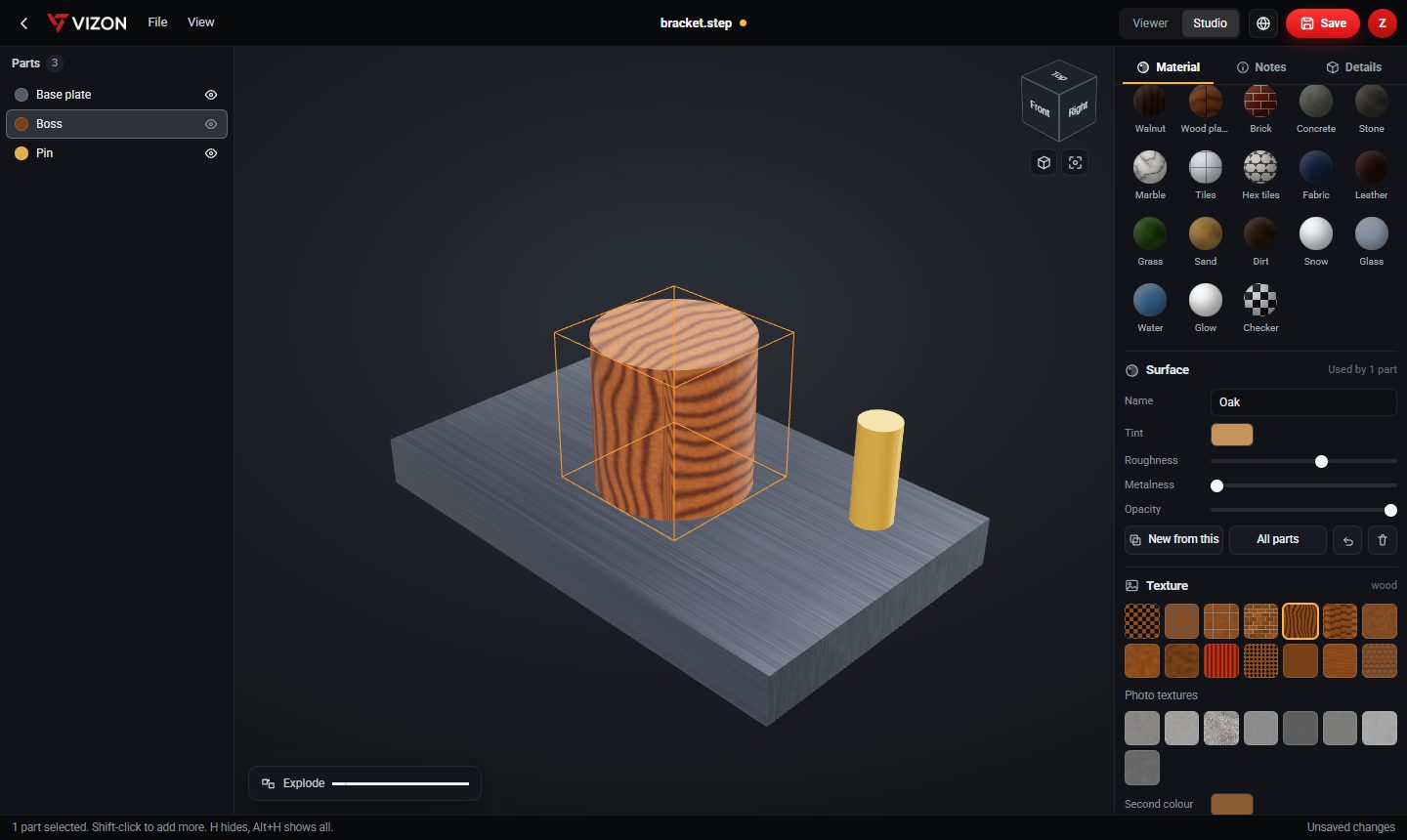
Each CAD part becomes its own named mesh in the GLB.
Wood, metal, plastic and more per part in Studio, saved into the GLB.
CAD millimetres are converted to metres with Y up, as glTF expects.
Export .gltf instead if your pipeline needs JSON.
Convert to mesh to keep editing it in the 3D Model Creator.
Or skip the file and share a link or embed of the model.
STEP carries little appearance data. Without materials the GLB is plain grey, so add them in Studio.
Metres with Y up, following the glTF standard. VIZON converts from CAD millimetres for you.
VIZON runs in your browser. Create an account and open the tool in seconds.