
Keyframe objects
Key position, rotation and scale of any object at any frame.
Open the Animate timeline in VIZON, pose objects or bones, press I to set keys, preview with Space, and export the animation inside a GLB.
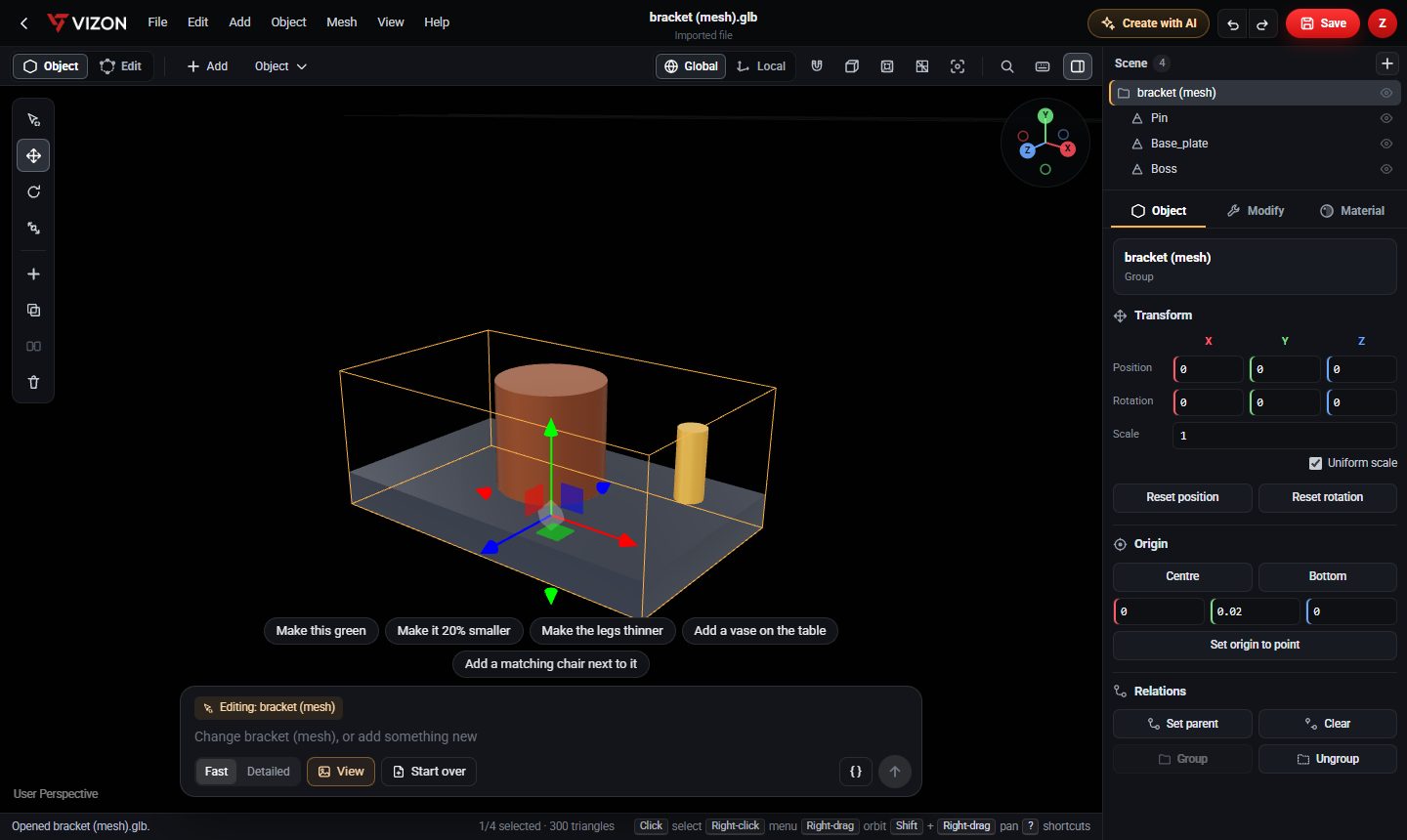
Key position, rotation and scale of any object at any frame.
Select bones in Edit pose and key their rotation.
Press Space to play the action and check the timing.
Keep several actions, such as idle and wave, in one file.
Animations already inside a GLB are kept.
Actions export as standard glTF animations that web viewers and engines play.
Yes, if it is rigged. Use Edit pose to select bones and key them. Unrigged characters can be rigged in the Rig menu.
GLB. STL has no animation, so export GLB.
VIZON runs in your browser. Create an account and open the tool in seconds.