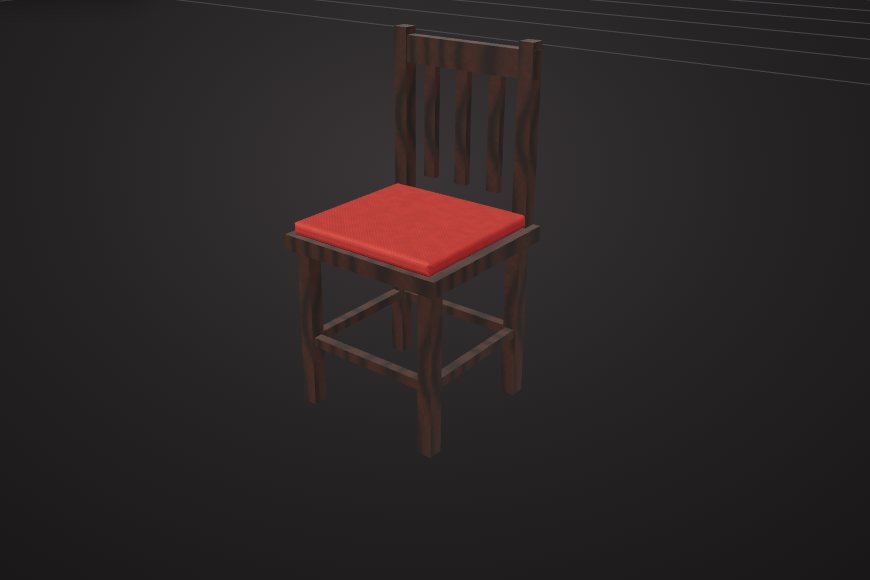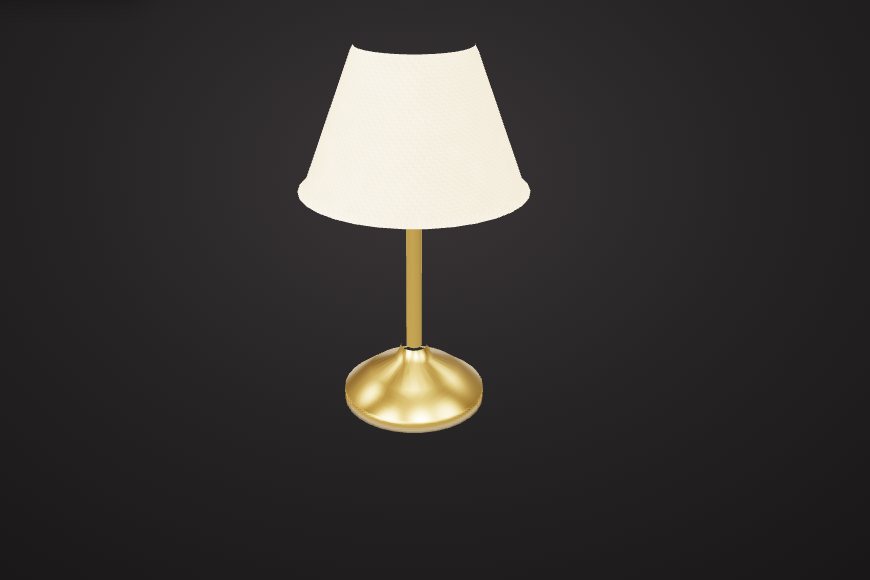
Presets
Wood, oak, walnut, metal, steel, brass, chrome, concrete, stone, marble, fabric, leather, glass, water, light and more.
Give any object or face a new material in VIZON: pick a preset, set colour, roughness and metalness, or load full PBR texture maps, then download the model as GLB.
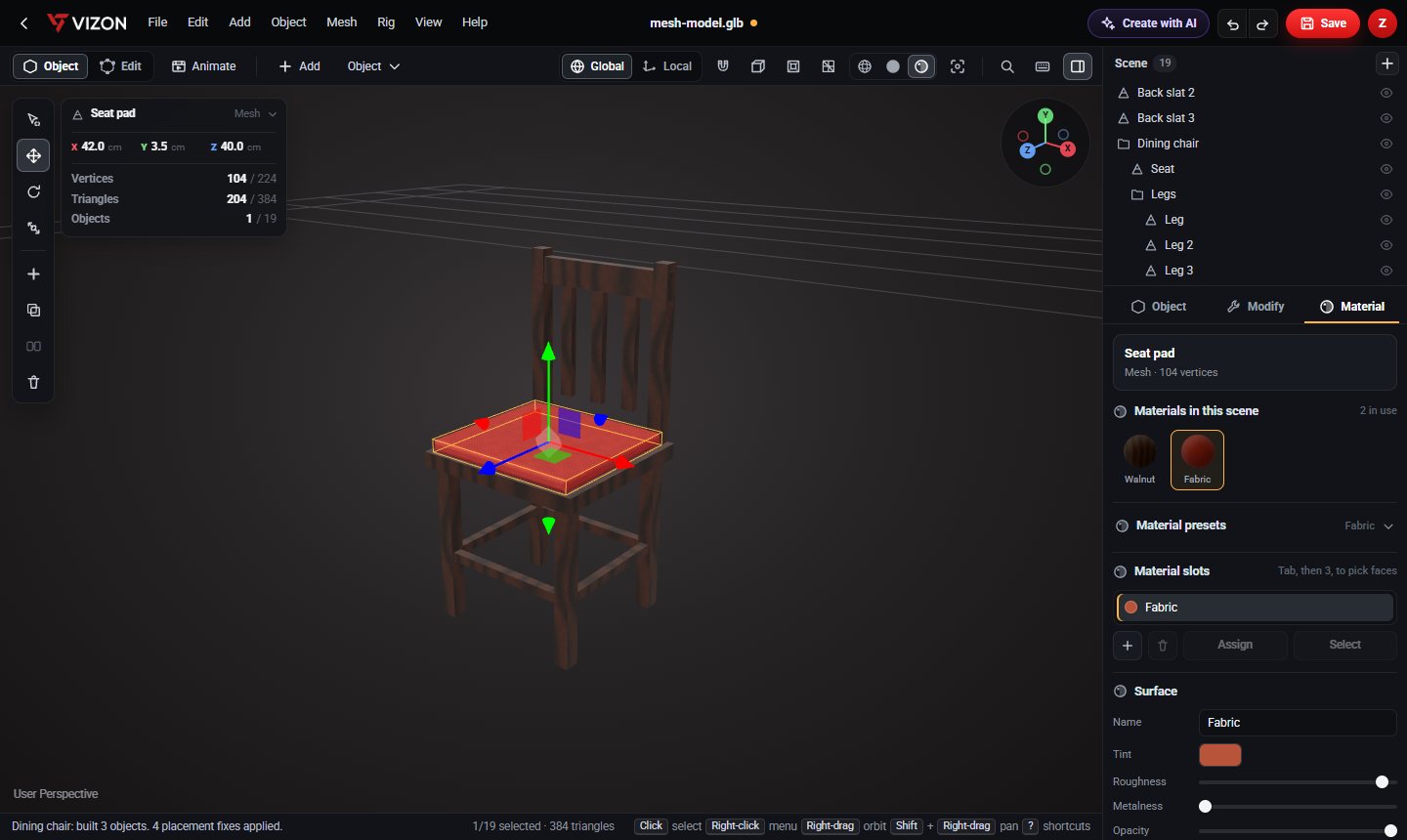
Wood, oak, walnut, metal, steel, brass, chrome, concrete, stone, marble, fabric, leather, glass, water, light and more.
Colour, roughness, metalness, opacity and emissive glow on every material.
Base colour, normal, roughness, metalness, ambient occlusion, emissive and height maps.
In edit mode, select faces and give them their own material slot.
Planks, bricks, tiles, marble, fabric and other patterns generated without image files.
STL has no materials of its own. Add them in VIZON and export GLB to keep them.
Real models built with these tools. Each one is free to download.
GLB and glTF store PBR materials and textures. STL stores none, so export GLB to keep your materials.
Yes. Load image files into the PBR map slots, and they are packed into the GLB on export.
Yes. Select faces in edit mode and assign a material slot to them.
VIZON runs in your browser. Create an account and open the tool in seconds.