
Know what you can and cannot change in an STL
An STL is a surface of triangles with no history. You can transform it, cut it and combine it, but there is no "hole diameter" to type in. If you need that kind of change, rebuild the part in CAD.
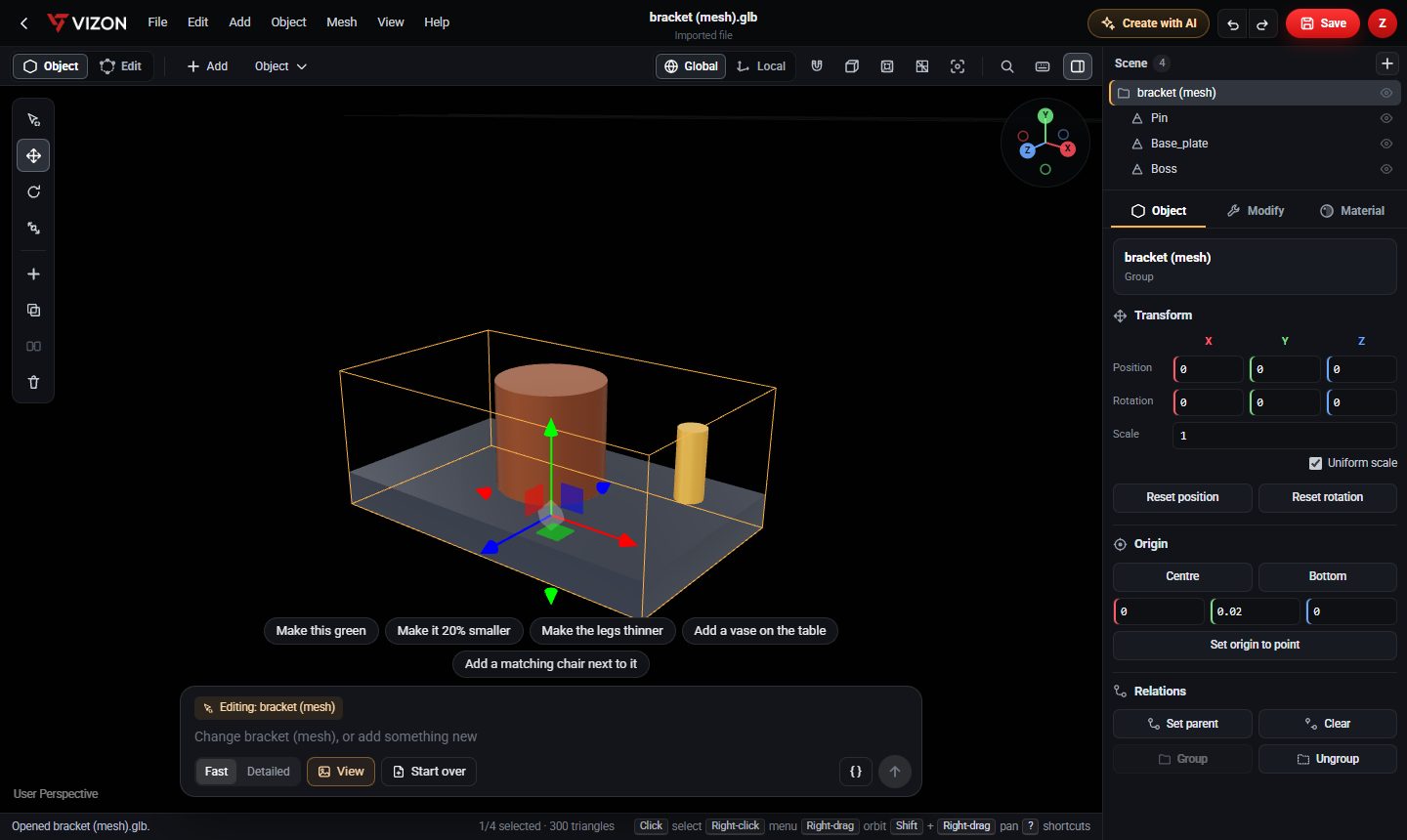
Open the STL
- Upload the .stl file to your VIZON library.
- Open it in the 3D Model Creator.
- If it looks too big or too small, remember STL has no units: a part designed in inches may appear 25.4 times too small.
Resize and rotate
Select the model and press S to scale or R to rotate, or type exact values in the transform panel. To convert an inch model to millimetres, set the scale to 25.4.
Cut a hole or slot
- Add a cylinder (for a hole) or a cube (for a slot).
- Size and place it where the cut should go.
- Select the STL and the cutter, then run Boolean, Subtract.
Combine or split parts
Inside one model, select two parts and use Join (Ctrl+J), or Boolean, Union to merge them into a single solid. To split a model, use Separate, By loose parts. Bringing two separate STL files into one scene is not supported yet: opening a file replaces the scene.
Export the edited STL
Save the model to your library, open it in Studio, and choose Export, STL. Load it into your slicer and check the size before printing.